How to Use AI for Meeting Notes Without Making Meetings Worse
A practical guide to using AI for meeting notes without losing trust, context, or control.
Updated April 10, 2026 · 14 min read
- Why Manual Meeting Notes Are Costing You More Than You Think
- What AI Meeting Note Tools Actually Do
- How to Choose the Right AI Note-Taking Tool
- Step-by-Step: Setting Up AI Meeting Notes From Scratch
- Can AI Take Notes in In-Person Meetings?
- 7 Best Practices That Separate Good Notes From Great Ones
- Privacy and Security: What You Need to Know
- Common Mistakes (and How to Avoid Them)
- Frequently Asked Questions
You walk out of a 45-minute meeting, someone asks for the notes, and you realize the one detail everyone will care about never made it onto the page. That is usually the moment people start looking for help.
According to research compiled by Porto Learn, the average employee spends roughly 392 hours per year in meetings — that's nearly 28% of a typical workweek. More troubling: 54% of professionals leave meetings unclear about subsequent action items or who's responsible for them. That's not a personal failing. That's a systemic one.
AI meeting notes are useful for a simple reason: they let one person stop acting as a part-time court reporter. You get a searchable record, a summary people may actually read, and a clearer list of next steps.
This guide covers the whole setup: how to choose a tool, test it in real meetings, and build a note-taking workflow that does not collapse after a week.
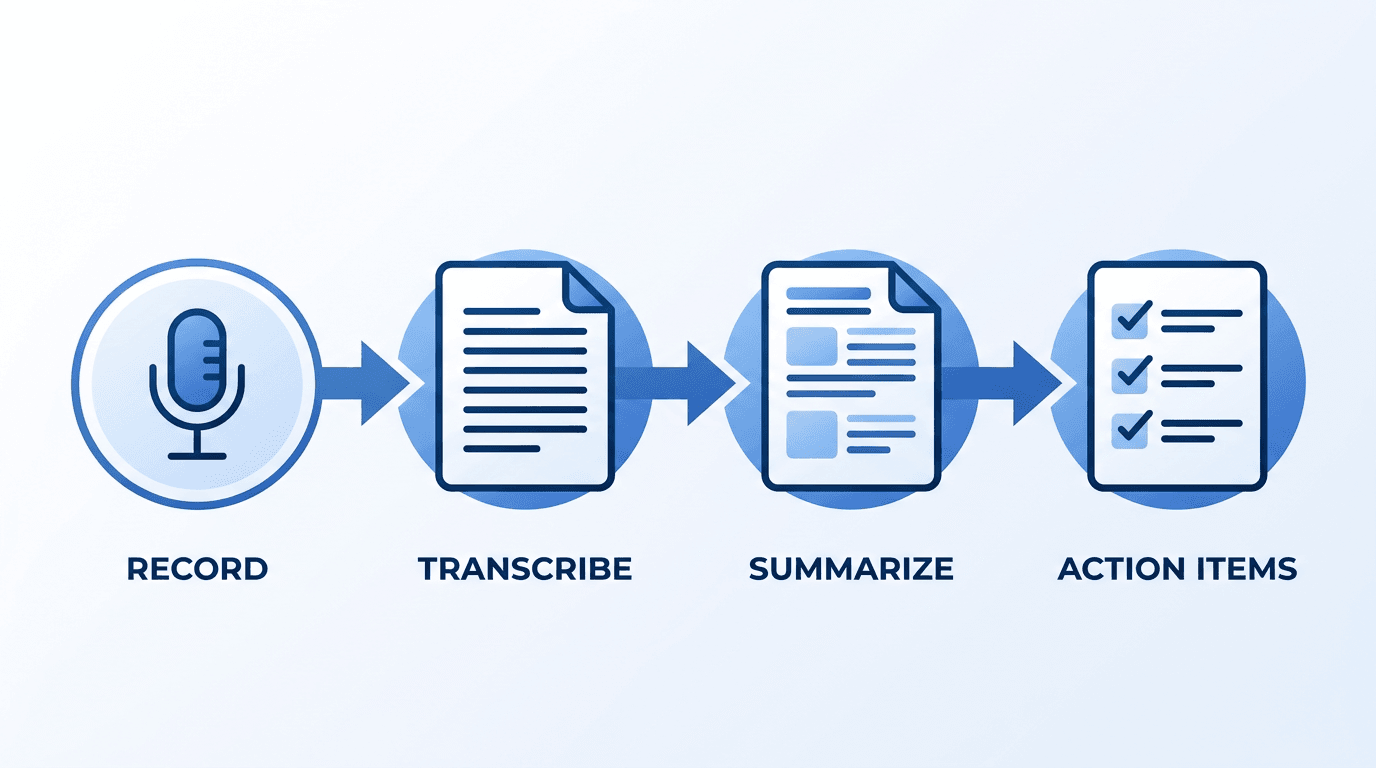
The AI meeting notes pipeline: from raw audio to organized, actionable output.
Why Manual Meeting Notes Are Costing You More Than You Think
Let's be blunt about what happens when one person in the room is "taking notes."
They're half-listening. They're paraphrasing on the fly, which means filtering the conversation through their own biases and gaps in understanding. They're missing nonverbal cues because their eyes are on a laptop screen. And when the meeting ends, those notes sit in a Google Doc that three people will open once and never revisit.
This isn't speculation. A widely cited study from Microsoft Research found that meeting participants who take notes by hand retain more conceptual information — but capture far less factual detail. In a business context, factual detail is what matters. Who committed to what, by when, and what changed from the last discussion.
The financial toll is staggering. For a 100-person company, ineffective meetings drain an estimated $2.9 million annually. Scale that to 5,000 employees and the figure jumps to $145 million. Globally, U.S. businesses hemorrhage between $259 billion and $399 billion every year on unproductive meetings, per workplace productivity research aggregated by Porto Learn.
And here's the part that gets overlooked: 62% of professionals regularly attend meetings where the agenda or primary goal was never stated in the calendar invite. When objectives are unclear going in, notes become a jumble of disconnected thoughts rather than a structured record of decisions.
Manual note-taking also creates a single point of failure. If the designated note-taker is absent, sick, or simply distracted, the institutional memory of that meeting vanishes. There's no transcript to search, no summary to distribute, no record that a critical decision was made at 10:47 AM on a Tuesday.
What AI Meeting Note Tools Actually Do
Before diving into how-to steps, it helps to understand what's happening under the hood — without getting into machine learning jargon.
Most AI meeting note tools follow a four-stage pipeline. If you want a more technical walkthrough of what happens behind the scenes, this explainer on how AI meeting tools work is a relevant follow-up:
- Capture: Audio is recorded either through a bot that joins your video call, a browser extension, or a mobile app's microphone for in-person meetings.
- Transcribe: Speech-to-text models convert audio into a written transcript, usually identifying individual speakers (called "diarization").
- Summarize: A language model reads the transcript and produces a condensed summary, pulling out key topics, decisions, and discussion threads.
- Extract: Action items, deadlines, and ownership assignments are identified and formatted — sometimes pushed directly into project management tools like Asana or Notion.
The output typically includes three deliverables: a full transcript (searchable and timestamped), a structured summary (usually broken into sections by topic), and an action item list with assignees.
Some tools go further. They track sentiment, flag unresolved questions, or let you click on a summary bullet to jump to the exact moment in the recording where it was discussed. That "click to jump" feature, in particular, has become something of a must-have — you can verify context instead of trusting a paraphrase.
How to Choose the Right AI Note-Taking Tool
The market has exploded. There are dozens of tools, and they all claim high accuracy and seamless integrations. Here's what actually matters when you're evaluating them.
Meeting Format: Virtual, In-Person, or Both?
This is the first fork in the road. Tools like Otter.ai and Fireflies.ai are built primarily for virtual calls — they join your Zoom or Teams meeting as a participant (often appearing as a bot in the attendee list). Others, like Plaud or phone-based recorders, are designed for in-person meetings where there's no digital call to "join."
If you split time between virtual and face-to-face meetings, look for tools that handle both — capturing audio via microphone when there's no video call link to hook into.
The Bot Problem
One recurring complaint is that visible note-taking bots can make meetings feel stiff. The moment people see an AI bot in the attendee list, some start speaking more carefully, others get distracted, and the room changes a bit.
Several tools now operate without a visible bot. They record locally through a browser extension or desktop app, capturing audio from your system output rather than joining the call as a participant. If you're in client-facing roles or working with privacy-sensitive teams, this distinction alone might determine your choice.
Accuracy With Your Specific Context
Transcription accuracy varies wildly depending on accents, industry jargon, audio quality, and how many people are speaking simultaneously. A tool that hits 95% accuracy on a clear one-on-one call might drop to 80% in a six-person brainstorm with people talking over each other.
The only reliable test is running a real meeting through the tool during a trial period. Don't trust demo videos or marketing claims alone.
Comparison Table: Key Factors to Evaluate
| Factor | What to Look For | Why It Matters |
|---|---|---|
| Capture Method | Bot-based vs. local recording vs. mobile mic | Affects privacy perception and in-person usability |
| Speaker Identification | Automatic diarization with labeled speakers | Critical for knowing who said what |
| Language Support | Native multi-language transcription (not just English) | Essential for global or multilingual teams |
| Integrations | Calendar, Slack, CRM, project management tools | Notes are useless if they don't reach the right people |
| Security & Compliance | SOC 2, GDPR, encryption standards | Non-negotiable for enterprise or regulated industries |
| Export Options | Markdown, PDF, plain text, API access | Determines how flexible notes are downstream |
| Cost Structure | Per-seat, per-minute, or flat monthly fee | Per-minute pricing can spike unpredictably |
Step-by-Step: Setting Up AI Meeting Notes From Scratch
Here's the practical walkthrough. These steps apply regardless of which specific tool you end up using — the mechanics are similar across the board.
Pick a Tool and Start a Free Trial
Nearly every AI note-taking tool offers a free tier or trial. Use it. Don't commit to an annual plan based on a product demo. Sign up, connect your calendar, and run at least three to five real meetings through it before deciding.
If you want a simple place to start, Vemory is worth testing. It handles both virtual and in-person meetings, supports 50+ languages, and is straightforward enough for first-time users who want to try AI notes without building a complicated setup first.
Connect Your Calendar
Most tools integrate with Google Calendar or Outlook. Once connected, the tool can automatically detect upcoming meetings and either join them (if bot-based) or prompt you to start recording when a meeting begins.
This calendar connection is more important than it sounds. It means the tool can pre-populate meeting titles, attendee names, and context — making the final notes more organized without extra effort on your part.
Configure Your Preferences
Before your first recorded meeting, spend five minutes in the settings. Key things to configure:
- Auto-join vs. manual start: Do you want the tool to record every meeting, or only the ones you manually trigger? Auto-join is convenient but can cause problems if you have informal calls you don't want recorded.
- Summary format: Some tools let you choose between paragraph summaries, bullet points, or structured formats with sections for decisions, action items, and open questions.
- Notification preferences: Decide who receives the summary — just you, all attendees, or a Slack channel.
- Custom vocabulary: If your team uses industry jargon or product names, adding these to the tool's vocabulary can meaningfully improve transcription accuracy.
Run Your First Meeting
Start with a low-stakes internal meeting. Not a client call, not a board presentation — a team standup or a weekly sync. This gives you room to see how the tool behaves without worrying about a "Notetaker Bot has joined" notification startling an external stakeholder.
During the meeting, resist the urge to take manual notes simultaneously. The point is to test whether the AI output stands on its own. If you're scribbling alongside it, you'll never know.
Review and Edit the Output
This is the step most people skip — and it's the most important one. After the meeting, open the generated summary and transcript. Check for:
- Accuracy: Did the tool capture the key decisions correctly? Are names and technical terms spelled right?
- Completeness: Were any important discussion points missing from the summary?
- Action items: Are the extracted tasks actually actionable? Are they assigned to the right people?
Edit where needed. This review step is usually short, but it matters. It is the difference between a note you can send with confidence and a draft that still feels slightly off.
Harvard University's IT department recommends that all AI-generated meeting summaries be reviewed and corrected before distribution, shared sparingly, and deleted when no longer needed. This is good practice even outside academic settings — it keeps your notes accurate and your data footprint minimal.
Distribute and Archive
Send the polished notes to relevant stakeholders within 24 hours — ideally within the first hour after the meeting, while context is fresh. Most tools support one-click sharing via email, Slack, or direct integration with Notion, Confluence, or Google Docs.
Archiving matters too. Establish a consistent folder structure or tagging convention (by project, team, or date) so that three months from now, you can search for "Q2 roadmap decision" and actually find it.
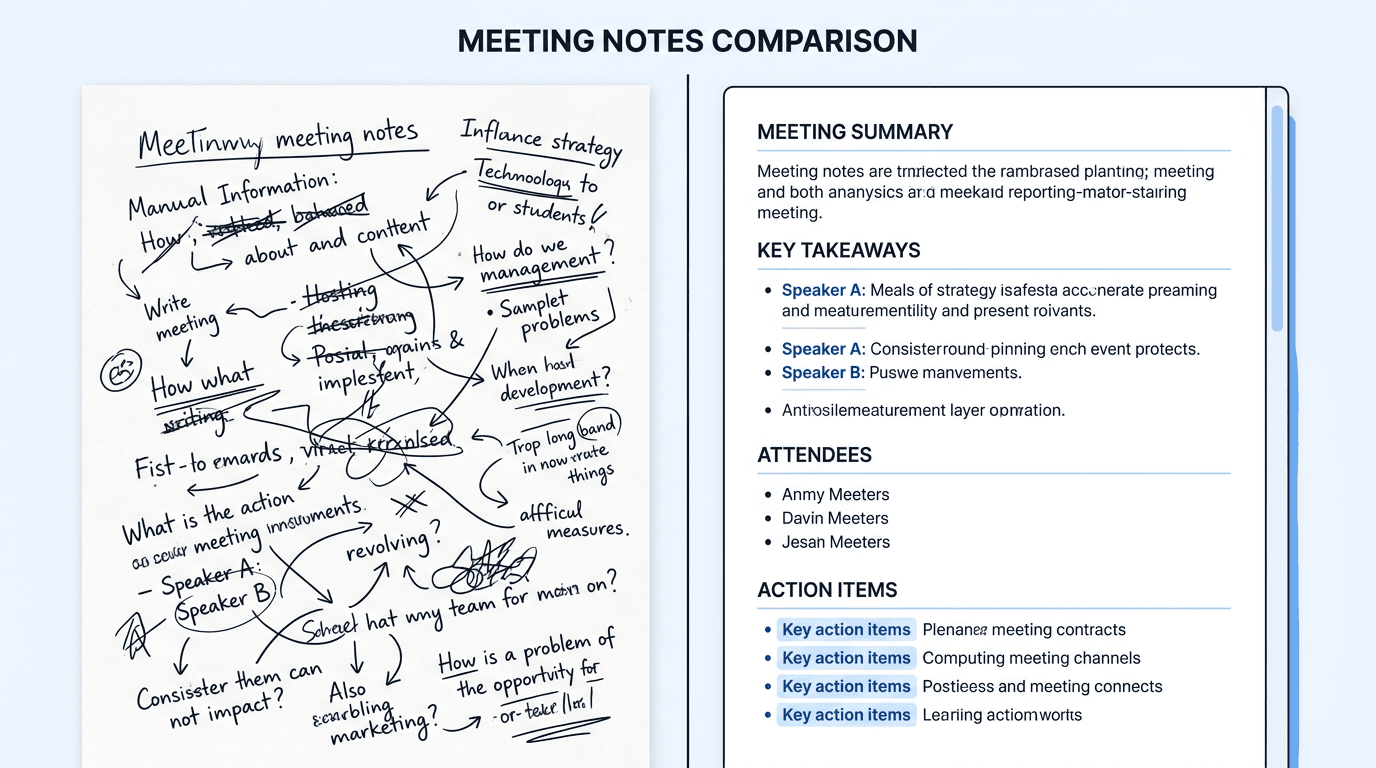
Manual notes vs. AI-generated notes: the difference in structure and completeness.
Can AI Take Notes in In-Person Meetings?
This is one of the most-asked questions on the topic, and the answer has shifted significantly in the past year.
Early AI note tools were designed exclusively for virtual calls. If you were meeting around a conference table, you were on your own. That's changed. There are now three practical approaches to capturing in-person meetings with AI:
Option 1: Phone-Based Recording Apps
The simplest method. Open a recording app on your phone, place it in the center of the table (or keep it in your pocket — modern mics are surprisingly capable), and let it run. After the meeting, the audio is uploaded and processed the same way a virtual call would be.
Apps like Vemory handle this natively — you can record directly through the mobile app's microphone, and the AI processes the audio for transcription and summarization after the fact. No internet connection needed during the recording itself.
Option 2: Dedicated Hardware
Devices like the Plaud NotePin or similar wearable recorders clip to your lapel and capture high-quality audio throughout the day. They sync with companion apps that handle transcription and note generation. The upside is superior audio quality and always-on capture. The downside is cost (typically $100-$200+) and another device to charge and maintain.
Option 3: Laptop Mic + Desktop App
If you bring a laptop to the meeting, some tools can record through your laptop's built-in microphone without needing a call link. This works well in small meeting rooms but degrades quickly in larger spaces or noisy environments.
| Method | Audio Quality | Setup Effort | Cost | Best For |
|---|---|---|---|---|
| Phone recording app | Good (within 6ft) | Minimal | Free – $15/mo | Small groups, quick setup |
| Dedicated hardware | Excellent | One-time setup | $100-$200+ device | Frequent in-person meetings |
| Laptop mic + desktop app | Fair to good | Minimal | Free – $15/mo | Small rooms, already have laptop open |
7 Best Practices That Separate Good Notes From Great Ones
Running an AI tool during a meeting is the easy part. Getting consistently useful output requires a bit of intention. Here's what I've found makes the difference after months of testing various tools across different meeting types.
1. Tell Participants They're Being Recorded
This isn't just about courtesy — in many jurisdictions, it's a legal requirement. Even where one-party consent applies, transparency builds trust. A simple "I'm going to run our AI notetaker today so we have a full record — anyone have concerns?" at the top of the call takes ten seconds and prevents awkward situations later.
2. Start Each Meeting With a Clear Agenda
AI summaries are only as structured as the meeting itself. If the conversation meanders without clear topics, the summary will read like a stream-of-consciousness journal entry. Stating agenda items upfront gives the AI natural "section breaks" to organize around.
3. State Names and Decisions Out Loud
This sounds obvious, but it matters more than you'd expect. Instead of "Yeah, let's go with that option," say "OK, Sarah, we're going with Option B — the phased rollout in Q3." The AI picks up the explicit reference and generates a cleaner action item: Sarah: Proceed with phased rollout in Q3.
4. Add Custom Prompts or Templates
Many tools allow you to set a "prompt" or template that shapes the summary output. For example, you might specify: "Focus on decisions made, unresolved questions, and action items with owners and deadlines." This steers the AI away from summarizing small talk and toward the substance that actually matters.
5. Review Notes Within 30 Minutes
The window for accurate editing is short. If you review the AI's output while the meeting is still fresh, you'll catch errors in seconds. Wait three days and you won't remember whether it was Tuesday's meeting or Wednesday's where the budget got approved.
6. Build a Consistent Archive System
50+ AI-generated meeting summaries sitting in an unorganized folder are worse than useless — they're a haystack without a needle. Use consistent naming conventions (e.g., [Date] - [Project] - [Meeting Type]) and tag notes by project, team, or decision category.
One Reddit user in r/projectmanagement put it well: "My team generates 50+ AI meeting notes a week. The problem isn't creating them — it's finding anything afterward." That's an organizational problem, not a tool problem.
7. Don't Over-Automate Distribution
It's tempting to auto-send AI summaries to every attendee the moment a meeting ends. Resist this. An unreviewed, inaccurate summary that goes to a client or executive creates more problems than it solves. Build in a review checkpoint — even a quick 2-minute scan — before any notes leave your inbox.
Privacy and Security: What You Need to Know
This is where the conversation gets serious, and rightly so.
When you record a meeting with an AI tool, you're sending audio — potentially containing sensitive business information, personal data, or confidential strategy discussions — to a third-party server for processing. That demands a baseline level of due diligence.
Questions to Ask Before Adopting Any Tool
- Where is data stored? Look for tools that store data in SOC 2-compliant infrastructure and offer region-specific data residency options (especially relevant for teams bound by GDPR or similar regulations).
- How long is data retained? Can you control retention periods? Can you delete recordings and transcripts on demand?
- Is the audio used to train models? Some tools use your meeting audio to improve their AI models. If confidentiality matters, verify that your data is not used for training purposes.
- What happens on the free tier? Free plans sometimes come with looser data policies. Read the terms of service for the specific plan you're on, not just the enterprise pitch deck.
Recording laws vary by jurisdiction. In the US, federal law requires one-party consent, but 11 states (including California, Illinois, and Massachusetts) require all-party consent — meaning every participant must agree to be recorded. Similar rules exist across the EU under GDPR. When in doubt, always ask for permission before recording. It's the safest legal position and the right thing to do.
The U.S. Chamber of Commerce has published guidelines for managing AI notetaking bots in meetings, recommending that organizations develop clear policies around when recording is permitted, how transcripts are stored, and who has access. Even if you're a solo freelancer, thinking through these questions will save headaches down the road.
Common Mistakes (and How to Avoid Them)
After reviewing hundreds of discussions across Reddit, Product Hunt, and professional communities, certain patterns emerge in how people go wrong with AI meeting notes.
Mistake 1: Trusting the Output Blindly
AI transcription is impressive, but it's not infallible. Proper nouns, acronyms, and low-frequency technical terms are still weak spots. One venture capitalist in r/venturecapital mentioned they stopped sharing raw AI summaries with founders after a tool consistently misspelled a portfolio company's name — not a confidence-inspiring look.
Fix: Always review before distributing. Treat AI notes as a first draft, not a final document.
Mistake 2: Recording Everything
Some people turn on auto-record for every meeting — including casual 1-on-1s, social catch-ups, and sensitive HR conversations. This creates unnecessary data liability and can erode trust. Not every conversation needs to be transcribed.
Fix: Be deliberate about which meetings get recorded. Default to off, opt in when valuable.
Mistake 3: Ignoring the "So What?" Question
A 30-page transcript of a brainstorming session is not useful. What makes meeting notes valuable isn't completeness — it's actionability. If the notes don't tell you who's doing what by when, they're just a record of people talking.
Fix: Configure your tool to prioritize action items and decisions over verbatim transcription. Use summary templates that force structure.
Mistake 4: Not Getting Buy-In From Your Team
Unilaterally introducing a recording bot into team meetings without discussion is a fast way to generate resentment. People need to understand the benefit and consent to the process.
Fix: Introduce the tool in a team meeting. Explain what it does, what happens to the data, and ask for feedback. Frame it as a productivity experiment, not a surveillance program.
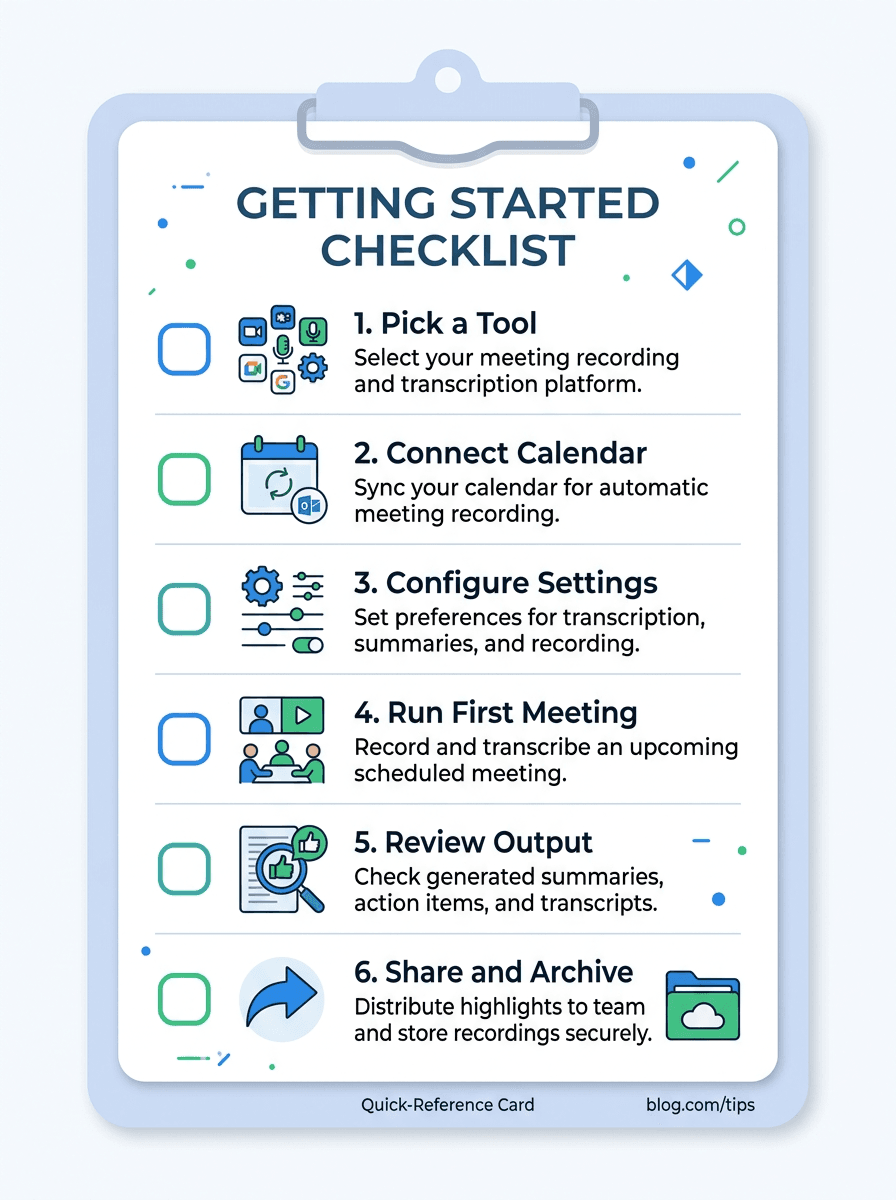
Quick-start checklist: everything you need to set up AI meeting notes in one view.
Frequently Asked Questions
There's no single "best" — it depends on your use case. For virtual-only meetings, Otter.ai and Fireflies.ai are established options with strong integrations. For teams that need both virtual and in-person capture with multilingual support, Vemory handles both scenarios through a single app. For enterprise environments with strict compliance needs, tools like Fathom or dedicated Microsoft Teams Copilot features may fit better. The most reliable approach is to trial two or three tools with your actual meetings and compare the output side by side.
Most leading tools advertise 90-98% accuracy under ideal conditions (clear audio, one speaker at a time, minimal background noise). In practice, expect 85-95% for typical business meetings. Accuracy drops with heavy accents, overlapping speakers, poor microphone quality, and industry jargon. Adding custom vocabulary to your tool — product names, acronyms, team member names — can improve results noticeably.
In most US states, you need only one party's consent (your own) to record. However, 11 states require all-party consent, and the EU's GDPR imposes strict rules about recording and processing personal data. Company policies may add further restrictions. The safest approach: always inform participants that recording is happening and give them the option to decline. Check your local laws and organization's policies before recording.
You can, but with caution. Verify that your tool uses end-to-end encryption, doesn't use your data for model training, and complies with relevant standards (SOC 2, HIPAA, GDPR). Some tools offer on-premise deployment for maximum security. For highly sensitive conversations — board meetings, M&A discussions, legal matters — consult with your legal team before recording.
Yes, virtually all major AI note-taking tools integrate with Zoom, Microsoft Teams, and Google Meet. The integration method varies — some join as a bot participant, others use browser extensions or native app integrations. Check whether your organization's IT policy allows third-party bots to join calls, as some companies restrict this.
Review notes before distribution and redact anything that shouldn't be shared broadly. Set up access controls so only relevant team members can view specific meeting records. Use tools that support granular sharing permissions and automatic data retention policies. When in doubt, delete recordings after extracting the summary and action items.
Getting Started Is the Hardest Part
The hardest part is rarely the technology itself. It is deciding which meetings are worth recording and then sticking with a process that feels light enough to keep using.
Start with one tool and one low-stakes meeting. Review the output, adjust the settings, and judge it by one standard: did it make follow-up easier the next day?
Meeting-heavy days are draining enough already. If AI helps you stay present, capture the important details, and spend less time rewriting notes afterward, that is not hype. It is just a better way to work.
Most tools are easy to test before you spend anything meaningful. The real work is being honest about what helps, what feels awkward, and what should stay out of your process entirely.