Resolving Microsoft Teams AI Transcription and Summary Errors
Microsoft's own data shows that over 300 million people use Teams monthly—yet a surprising number of them hit a wall when automated meeting notes in teams silently fail, produce garbled summaries, or stop generating altogether. The root causes range from misconfigured tenant policies and expired Copilot licenses to audio input problems that the AI simply can't parse. This troubleshooting guide walks through each failure point step by step, with specific fixes you can apply right now to get accurate, reliable transcription and note-taking back on track.
- Why Automated Meeting Notes in Teams Stop Working
- Check Your Microsoft Teams Transcription and Recording Settings
- How to Resolve Third-Party Note-Taking Bot Blocks
- Verify Copilot and Teams Premium License Assignments
- Fixing Audio and Language Recognition Errors That Break Notes
- When to Contact Your IT Admin for Tenant-Level Policy Changes
- Frequently Asked Questions About Automated Meeting Notes in Teams
- Quick-Fix Summary and Next Steps
Why Automated Meeting Notes in Teams Stop Working
One day it works perfectly. The next, your meeting ends and there's nothing — no transcript, no summary, no record of what anyone said. Automated meeting notes in Teams can fail silently, which makes troubleshooting frustrating because the feature simply doesn't generate an error message in most cases.
The root causes typically fall into five categories. Running through this checklist before anything else will save you significant time:
- Transcription disabled at the tenant or user level — Your IT admin controls a policy called AllowTranscription in the Teams admin center. If it's set to False, no transcript gets created, period.
- Missing or unassigned licenses — Intelligent Recap requires a Teams Premium or Microsoft 365 Copilot license. A standard E3 license won't trigger AI-generated summaries.
- Recording not initiated — Some organizations assume notes generate automatically. They don't unless transcription or recording is actively running during the call.
- Audio input problems — If your microphone feed is too low, distorted, or routed through an unsupported device, the speech-to-text engine produces nothing usable.
- Unsupported meeting language — Teams currently supports transcription in roughly 30 languages, per Microsoft's official language support documentation. If the spoken language doesn't match the configured setting, output quality drops to near zero.
Most failures trace back to that first item — a policy toggle buried three menus deep in the admin console. The sections ahead walk through each cause with exact steps to diagnose and fix it, starting with transcription and recording settings.
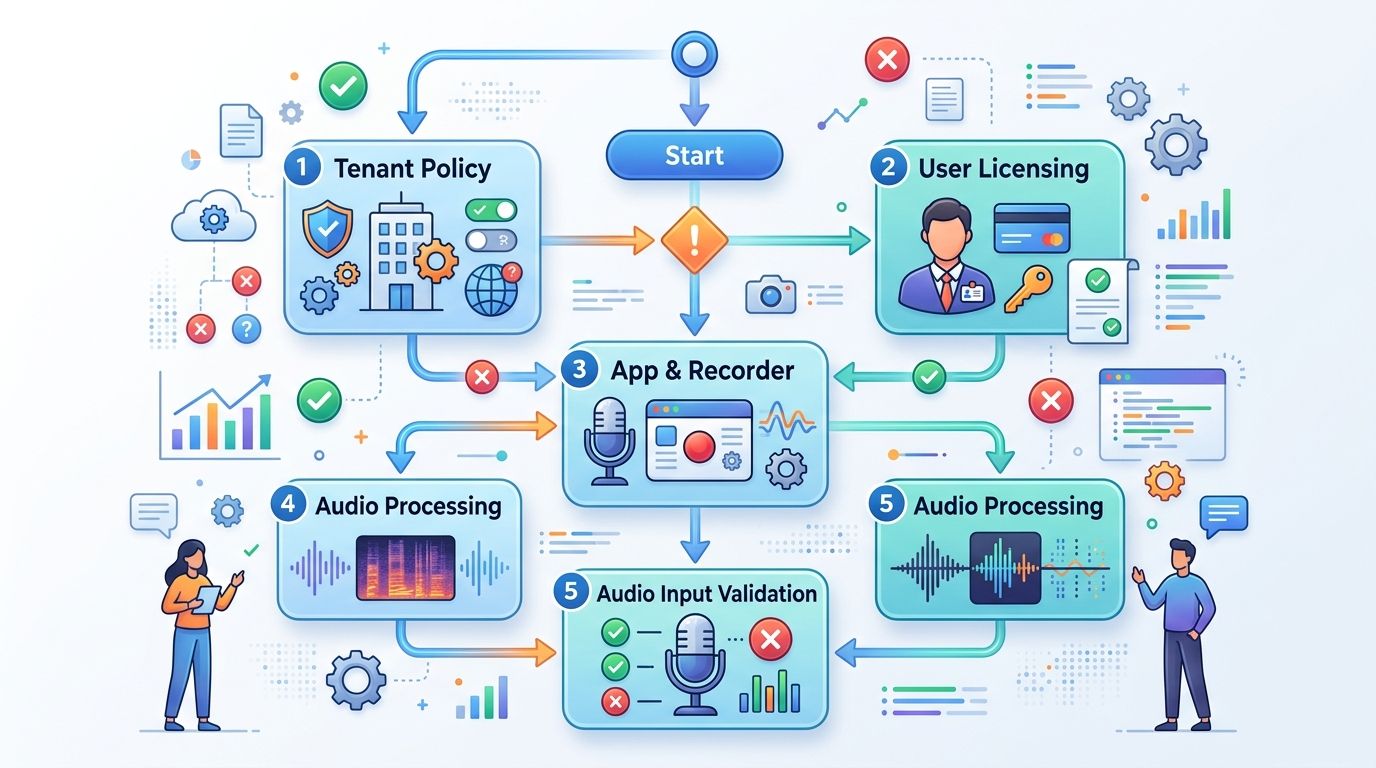
Flowchart illustrating five root causes when automated meeting notes in Teams stop working
Check Your Microsoft Teams Transcription and Recording Settings
There are three layers of settings that control whether automated meeting notes in teams actually generate. Miss any one of them, and you get silence after the meeting ends. Let's walk through each layer.
Admin Center: The Org-Wide Kill Switch
Open the Teams Admin Center, navigate to Meetings → Meeting policies, and look for "Transcription" under the Recording & transcription section. If this toggle is off at the org-wide (Global) policy level, no user in your tenant can generate transcripts — period. Admins can also create per-user or per-group policies that override the global default, which means your account might be assigned a restrictive policy even when colleagues have transcription working fine.
Per-User Policy Assignments
This catches people off guard. An admin might have enabled transcription globally but assigned your specific account a custom policy with it disabled. Check by running Get-CsOnlineUser -Identity [email protected] | Select TeamsMeetingPolicy in PowerShell, then inspect that policy's transcription value. A mismatch here explains why it works for your teammate but not for you.
The Meeting-Level "Allow Transcription" Toggle
Even with admin policies green-lit, each meeting has its own Meeting options page. Under the recording section, there's an "Allow transcription" switch that defaults to on — but only if the organizer's policy permits it. If the organizer's account has transcription disabled, this toggle won't even appear. That silent absence is the most common reason automated meeting notes fail without any visible error message.
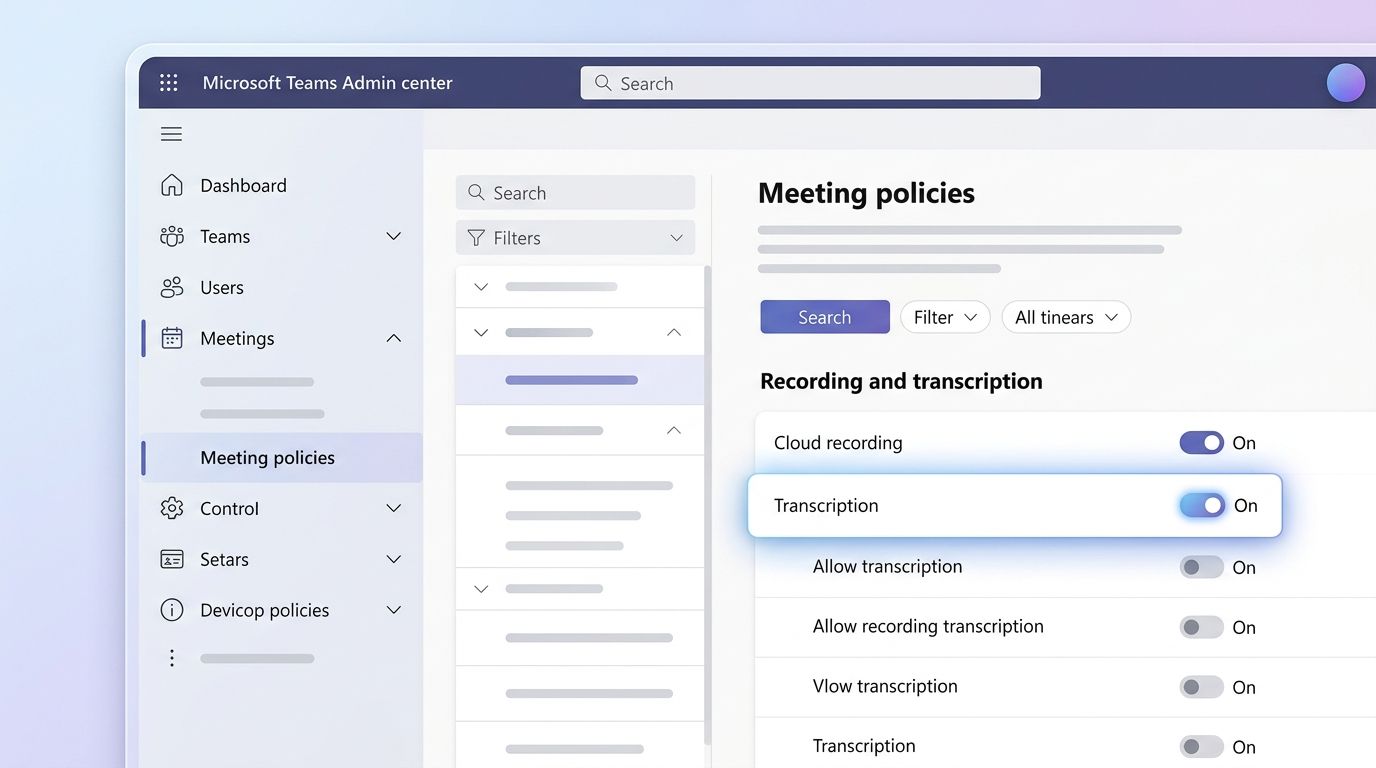
Teams Admin Center meeting policy transcription toggle setting for automated meeting notes
How to Resolve Third-Party Note-Taking Bot Blocks
Otter.ai, Fireflies, Fathom — these bots join your meeting as a participant, and Teams treats them exactly like an unknown external guest. That means they hit every security gate your admin has configured. When a bot silently fails to join, the root cause is almost always one of three policies working against it.
External Access and Anonymous Join Policies
Teams distinguishes between federated users (people in other Microsoft 365 tenants) and truly anonymous participants. Third-party note-taking bots typically join as anonymous users via a meeting link. If your tenant's Anonymous users can join a meeting setting is toggled off in the Teams Admin Center, the bot gets rejected before it even reaches the lobby. Your IT admin needs to verify this under Meetings > Meeting settings at the org level.
Lobby Bypass and Bot-Specific Restrictions
Even with anonymous join enabled, lobby settings can trap the bot indefinitely. If the meeting policy is set to "People in my org" for auto-admit, the bot sits in the lobby until someone manually lets it in — and most people don't notice. Set auto-admit to "Everyone" or have the organizer admit the bot manually each time. There's also a lesser-known control: AllowAnonymousUsersToJoinMeeting in PowerShell, which overrides the GUI toggle in certain policy inheritance scenarios.
If your organization relies on automated meeting notes in teams through third-party tools, the cleanest fix is creating a dedicated meeting policy that permits anonymous join and auto-lobby bypass, then assigning it only to users who regularly use these bots. This avoids loosening security org-wide while keeping your note-taking workflow intact.
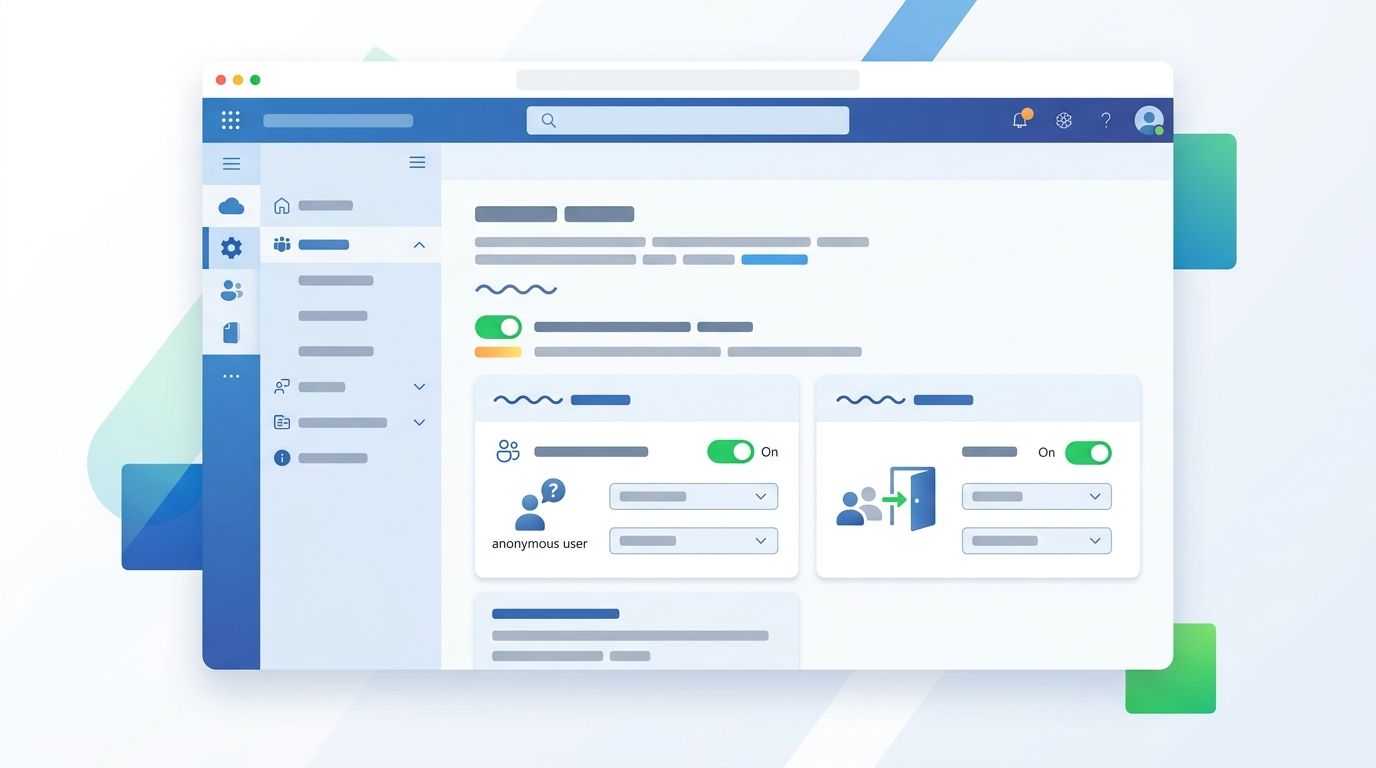
Teams Admin Center meeting policy settings for anonymous join and lobby bypass that affect third-party note-taking bots
Verify Copilot and Teams Premium License Assignments
Licensing is the silent gatekeeper. Your settings can be perfect, your policies wide open, and automated meeting notes in teams will still fail to generate if the account lacks the right license tier. Three distinct license levels unlock different capabilities, and mixing them up is one of the most common causes of "missing feature" complaints.
Which License Unlocks What
A standard Microsoft 365 E3 or Business Basic license gives you basic transcription — the raw text output that appears during and after a meeting. That's it. No AI-generated summaries, no action items, no speaker-attributed highlights. Teams Premium (an add-on at roughly $10/user/month) unlocks intelligent meeting recap: AI-generated notes, chapters, and personalized timeline markers. Microsoft 365 Copilot, priced at $30/user/month, goes further with natural language queries against your meeting content and cross-meeting insights.
How to Check License Assignment
Open the Microsoft 365 Admin Center, navigate to Users → Active users, and select the affected account. Click Licenses and apps. Look specifically for "Microsoft Copilot for Microsoft 365" or "Microsoft Teams Premium" in the assigned list. If neither appears, the user only has baseline transcription access.
Provisioning Delays Are Real
Here's what catches people off guard: license assignment isn't instant. Microsoft's documentation states changes can take up to 24 hours, but in practice, 4–8 hours is typical. Some tenants experience delays stretching to 72 hours during peak provisioning cycles. Signing out and back into Teams can force a license recheck, but don't panic if Copilot features remain grayed out for a day after assignment. Also confirm the license toggle under Apps within that same admin panel hasn't been individually disabled — IT admins sometimes selectively turn off sub-features without realizing the downstream impact on meeting intelligence.
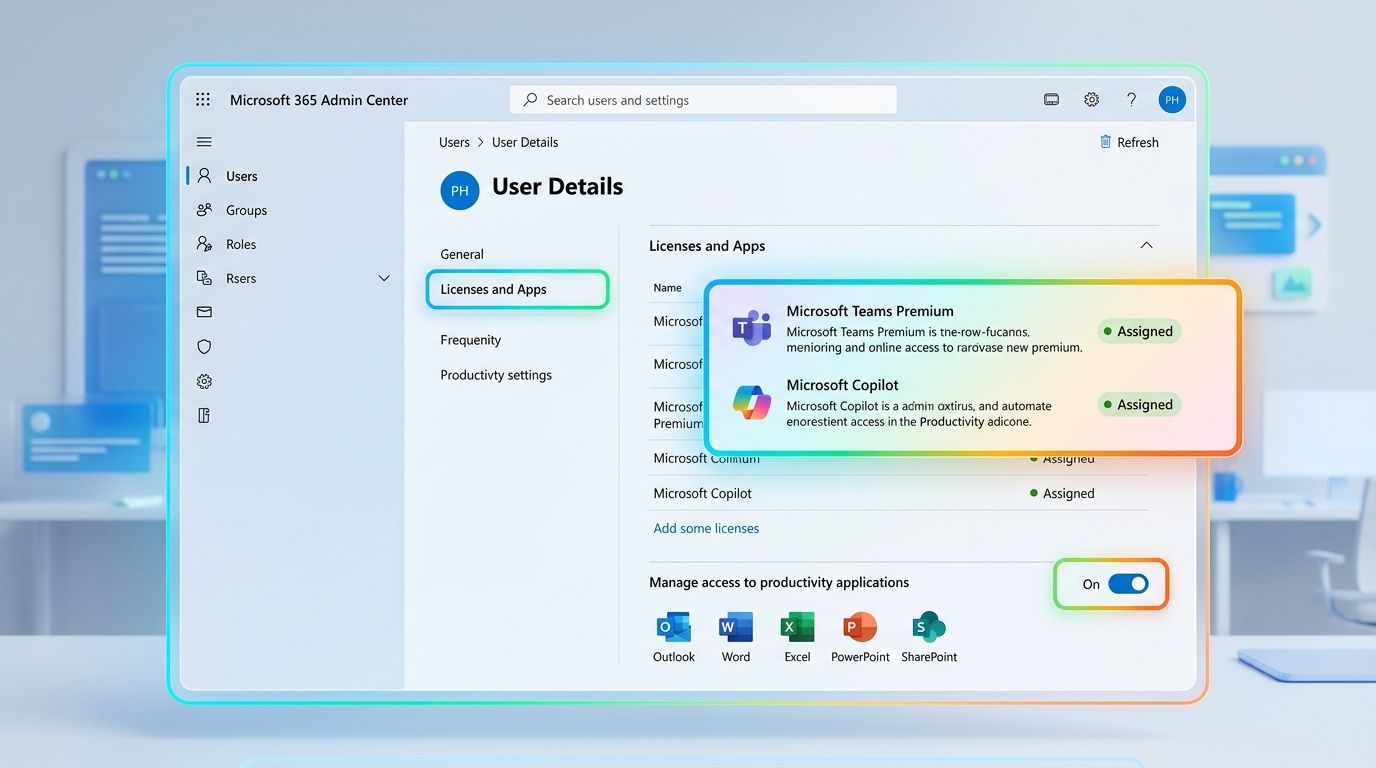
Microsoft 365 Admin Center licenses and apps panel displaying Teams Premium and Copilot license assignments for a user
Fixing Audio and Language Recognition Errors That Break Notes
Transcription is running. The indicator dot is visible. But when the meeting ends, the output reads like alphabet soup — garbled words, missing sentences, entire speakers reduced to "[inaudible]." This is the most frustrating failure mode because the system appears to work while silently producing garbage.
Microphone Input: The Most Overlooked Culprit
Teams transcribes whatever audio stream it receives. If your default input device is set to a laptop's built-in mic while you're speaking into a USB headset, the engine captures faint, echo-laden audio and guesses wildly. Check this before the meeting: click the three-dot menu, open Device Settings, and confirm the correct microphone is selected. Shared conference rooms compound the problem — a single speakerphone picking up 8 people at varying distances produces dramatically worse results than individual headsets.
Spoken Language Selection Matters More Than You Think
Teams defaults to the organizer's language setting for transcription. If your meeting is conducted in French but the spoken language is set to English (US), automated meeting notes in teams will attempt English phoneme matching against French speech. The result is nonsense. Organizers must set the correct spoken language before clicking Start Transcription — you cannot change it mid-stream without restarting.
Accents and Background Noise
Microsoft's speech model handles major accent variations reasonably well, but accuracy drops noticeably with heavy regional accents combined with poor audio. According to Microsoft's Azure Speech Service documentation, recognition accuracy depends heavily on signal-to-noise ratio. Coffee shop background noise, keyboard clacking, or an open window facing traffic can push word error rates above 30%. A $30 noise-canceling headset eliminates most of these issues entirely.
When to Contact Your IT Admin for Tenant-Level Policy Changes
Some problems live above your pay grade. If you've verified your personal settings, confirmed licensing, and ruled out audio issues, the blocker is almost certainly a tenant-level policy that only a Global Admin or Teams Admin can modify. Automated meeting notes in teams depend on several organization-wide toggles you simply cannot see or change from your end.
Here's what typically requires admin intervention: transcription disabled via CsTeamsMeetingPolicy at the tenant level, compliance recording policies that override user preferences, or geographic data residency restrictions that block AI processing in certain regions (EU tenants hit this frequently). Conditional access policies can also silently prevent Copilot from accessing meeting data.
Don't just say "it's broken." Send your admin something actionable. Copy this checklist:
- Is AllowTranscription set to True in the tenant-wide meeting policy?
- Are compliance or legal hold policies blocking AI-generated summaries?
- Does our tenant's data residency region support Teams Premium / Copilot processing?
- Are conditional access rules excluding the "Microsoft Teams" or "Office 365" cloud app from token grants needed by Intelligent Recap?
- Has an information barrier policy been applied to my account or department?
Admins can verify most of these in under five minutes using Get-CsTeamsMeetingPolicy in PowerShell. The faster you hand them specifics, the faster you get your notes back.
Frequently Asked Questions About Automated Meeting Notes in Teams
Why do my notes say "transcription not available"?
This message almost always points to a policy-level block. Either your tenant admin has disabled transcription in the Teams admin center, or your specific meeting policy doesn't include the AllowTranscription flag. It can also appear when the meeting organizer's license lacks transcription rights — even if yours includes them. The organizer's policy wins.
Can I get automated meeting notes without Copilot?
Yes, partially. Teams transcription works independently of Copilot and generates a full text transcript saved to OneDrive or SharePoint. What you lose without Copilot is the AI-generated summary — the action items, key topics, and structured recap. Third-party tools like Otter.ai can fill that gap if bot access is permitted in your org.
Do notes work differently in channel meetings vs. private meetings?
They do. Channel meeting transcripts save to the SharePoint site tied to that channel, while private meeting transcripts go to the organizer's OneDrive. Permissions differ too — channel members may access the transcript automatically, but private meeting attendees need explicit sharing.
Why are notes missing for some participants?
Automated meeting notes in Teams depend on each user's assigned policy and license. Guest users, external participants, and accounts on different tenants often can't access transcripts at all. If one colleague sees notes and another doesn't, check their license tier and meeting policy assignment individually.
How do I recover notes from a completed meeting?
If transcription was active during the meeting, the file exists — it just might be hard to find. Check the meeting chat's recap tab first, then look in the organizer's OneDrive under Recordings. No transcript file there? Transcription was never running, and unfortunately there's no retroactive way to generate one.
Quick-Fix Summary and Next Steps
Here's the diagnostic order that saves the most time. Work through it top to bottom — each step takes under two minutes until you hit the admin-dependent items.
- Personal settings: Open Teams → Settings → Recognition and confirm transcription is toggled on. Check your meeting language is set correctly.
- Meeting-level toggle: Before ending the call, verify the transcript indicator dot is visible in the toolbar. If it's missing, start transcription manually from the "More actions" menu.
- Third-party bot access: If you rely on Otter, Fireflies, or Fathom, confirm the bot actually joined as a participant. A blocked bot produces zero output silently. If your team wants a cleaner workflow for capturing meeting takeaways and follow-up actions, it may also be worth looking at tools like Vemory.
- License validation: Go to the Microsoft 365 Admin Center and verify your Copilot or Teams Premium license is assigned and fully provisioned — not just purchased.
- Audio quality: Switch from laptop speakers to a dedicated mic. Background noise and crosstalk are the top killers of accurate transcription.
- Tenant-level policies: If everything above checks out, escalate to IT. Ask them specifically to review the CsTeamsMeetingPolicy for AllowTranscription and AllowCloudRecording values.
Most failures with automated meeting notes in Teams resolve at steps one through three. The admin-dependent fixes take longer — sometimes 24 to 48 hours for policy changes to propagate — so flag those early.
Bookmark this page. Share it directly with your IT admin so they can skip the back-and-forth and jump straight to the tenant policy section. Faster context means faster resolution. If you're evaluating longer-term ways to make meeting documentation and action tracking more consistent across the team, Vemory is another option worth exploring.